Submitted by Sarah Robertson on May 28, 2013 - 12:51pm
Last week, in the 8 Key Considerations Before You Pick a Technology, we looked at some very specific aspects about your workflows and needs which will have big impacts on your ultimate technology decisions. As a reminder, click here for a questionnaire and checklist summarizing the things to consider.
In this week’s 4th and final post of this series, we’re walking through the 4 technology options and picking the right one for your team. Instead of listing preferred makes and models that will quickly become out of date, I’ve grouped mobile data capture technologies into four categories, outlining each solution’s capabilities, appropriate scenarios for each technology, and drawbacks. This section will help you understand the pros and cons of the different categories of technologies and narrow your scope to the one or two categories that will work best for your team.
-278x185.jpg) 1. Tablets and iPads
1. Tablets and iPads
With the advent of the iPad®, there are more tablet options than ever. Unfortunately, the category is very fragmented and the development and hardware options are not as robust as they are with laptops. Enterprise applications that install and run on Windows tablets don’t work on iPads. Even online apps may not be usable in every tablet browser because they use Flash or are built with .Net, ActiveX controls, or HTML coding that is not supported by specific tablets or browsers.
You really need to have a deep understanding of your field worker’s network coverage, the physical environmental factors, and the type of application you want to run to decide if tablets are right – and if so – which tablet. Get your IT team involved to help assess browser capabilities, the need for custom apps, and to understand how forms would be developed. Does your internal IT team have the know-how and resources to develop apps? Forms are apt to change a lot during the course of testing and evolution of your work flows. Many teams have been stung by complex apps or forms design tools that require a lot of training, coding, or scripting and can result in expensive and time consuming changes. For many teams, it makes sense to leverage familiar form design tools like Excel, which can be used by non-technical staff to easily create and change forms.
2. Smartphones, Handhelds
In the same way that the tablet market has evolved, so has the market for handheld devices. That, too, has resulted in fragmentation and device compatibility issues
The current handheld platform market is very fragmented. Enterprise platforms such as BlackBerry and Windows Mobile 6.5 offer IT teams the most control over managing devices, but these platforms are aging or falling out of favor. Windows Phone 7 is a completely different development environment than Windows 6.5. There is a fair amount of variation in Android platforms, based on customization by device makers and network operators.
For many of these platforms, building simple, one-off applications are getting easier. As the amount of data capture for any given increases, the keyhole view of these devices becomes an issue. Based on actual usage, it’s common for teams to make many change requests to apps, which increase the development costs and can be difficult to deploy to devices already in the field.
3. Digital P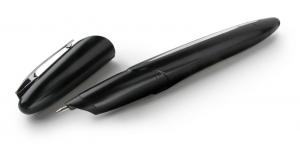 ens
ens
Digital pens write with normal ink on paper forms while also recording the handwriting using built-in scanners. The pens store the data, which can be sent to the back office through Bluetooth or a USB connection to a computer, at which point the data is converted and inserted into the digital forms and the handwriting is archived in image files.
Some digital pen solutions enable teams to create and modify forms using Excel, which can then be deployed to IT-friendly servers like SharePoint for use with paper forms and tablets. This can be a good way to deploy a common solution that supports both tablets users and pen-and-paper users in the field. If your technology vendor leverages Microsoft Excel for form design, then they should be able to do a quick custom demo for you. Send them one of your forms and ask the vendor to demo your form to you. That will be the best way to see that your needs are covered.
You should also ask about data integration and whether they support workflow notifications. Your vendor should be able to automatically enable alerts to teams in the office or field, for example, when new data arrives at the server or if fields in the forms were left blank.
4. Scanning
Scanning is a very mature and straightforward technology. The advent of handheld scanners and optical character recognition provide more options.
If you have a high volume of common forms, which need to get archived at some point, but not
immediately accessed, then scanning solutions can be a lot more cost effective than most large-scale software or device deployments. If you want instant access to data extracted from forms,
then mobile computers or digital pens might be better options.
As I said earlier, no one solution is perfect for every scenario. In some cases, teams may want an approach that leverages common elements like, Microsoft Excel as a design tool or a server structure that can receive data from multiple devices. At this point, you’re likely leaning toward one or two solutions. I encourage teams to use online resources such as Field Technologies Online and other web resources to learn more about vendors. List up potential vendors and get ready with questions based on the specific considerations mentioned above that relate to your workflows. One size does not fit all.
Final Thoughts
Thanks for taking the time to read this blog series. Now that you’ve gone deep into the considerations and assessed the technical approaches, the next step is to prepare and test a recommendation. That might involve getting a vendor involved – or you can do it all in-house. Run a pilot or a proof of concept to validate the approach and understand all specific issues that would need to be fixed for the final solution.
In some cases, building and testing your actual end solution might be too cost prohibitive for a pilot, so you may have to approximate the end experience. That could include simply getting data into a generic database as a proof of concept, rather than investing in the complete back-end integration for a pilot. Since your test is about data capture and not back-end integration which is a separate and well understood item, this pilot trade-off is reasonable and common.
Start a test with a small group that has an interest in the project’s success. Trialing with a team that is uninterested or overwhelmed by other tasks may not give accurate results. They may also be less forthcoming with feedback or forgiving with tweaks to the approach that you may want to add over time to fine tune the experience.
The process for implementing a single project, as with that for realizing the ultimate vision, is iterative. Clear goals, milestones that are both achievable and meaningful, and good collaboration and communication with stakeholders are all critical to success.
I hope that you’ve found this blog series useful. While every mobile deployment is different, these best practices and considerations will help you find the right solution for you and your team.
Please reach out if you have any comments, questions, or would like to get some feedback on your workflow. We’ve fielded thousands of deployment questions and requests: [email protected]




 gy solution provider, Adapx rounds out its software solutions with professional services and a strong network of technology partners. The Adapx Professional Services team is uniquely focused on improving workflow processes that include mobile data capture so customers can get to the data they need.


