
Printing
Capturx turns ordinary paper into extensions of your computer desktop applications through a special dot pattern which Capturx adds to print outs to enable them to be read by a digital pen. The dot pattern is unique for each page and appears as a light background on prints. The digital pen has a sensor which reads the dot pattern as it writes, tracking its location on that unique sheet as you write.
The dot pattern is printed with high precision using black ink, which is the only color “visible” to the digital pen. The information in the file, which is visible to humans, is printed using your printer's yellow, magenta, and cyan inks. Any visible lines that look black are actually combinations of those color inks.
An initial Capturx purchase includes a large amount of unique digital dot pattern: enough to print more than 6000 8-1/2-x-11 pages or more than 2000 E-sized prints. Dot pattern is like printer toner: it gets used up as you print. Additional dot pattern is available for purchase and download from Adapx.
Printing Resources
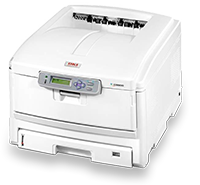
Capturx-enabled print outs must be made with a 4-color postscript printer. We have tested a broad range of printers which work with Capturx from leaders such as: HP, Okidata, Oce, Ricoh and Canon. For more information consult the Printing with Capturx Overview.
Getting Started with Printing...
1. Check the printer list- Make sure your printer is not on the exception list
- Check the compatible list to see if your printer requires any special settings
- 256MB of printer memory
- 4‐color printing with a carbon‐based black ink
- Postscript support
- Install your Capturx software and print a sample
- You will see a light grey watermark in the background of your print
- Mark the print with your digital pen and upload the data by docking your pen
- If your handwritten data is successfully uploaded into your file, then your printer works


